Install Ollama
You can download Ollama directly from their home page: https://ollama.com/search
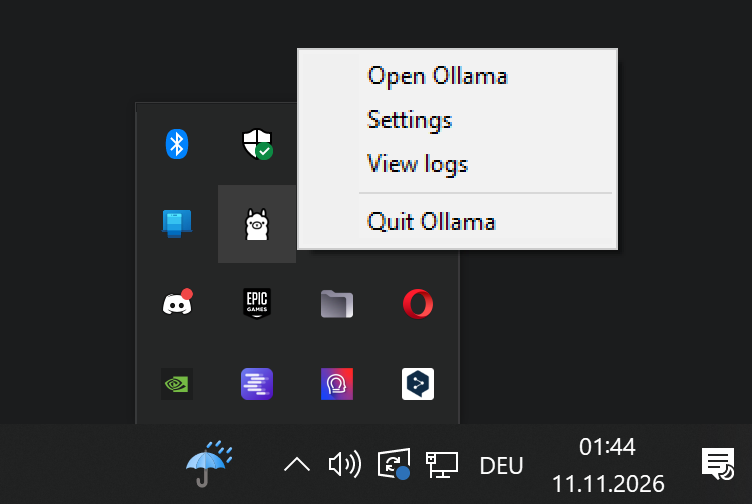
Pick the right version for your system. After the installation you'll find Ollama in your task bar menu on the right side. It's running in the background and doesn't use any resources as long as no model is loaded.
Find a model
Ollama lists all available models on their homepage under Models. You can access it with this link directly: https://ollama.com/search
Search for a specific model with the search field at the top or select your criteria on the right side.
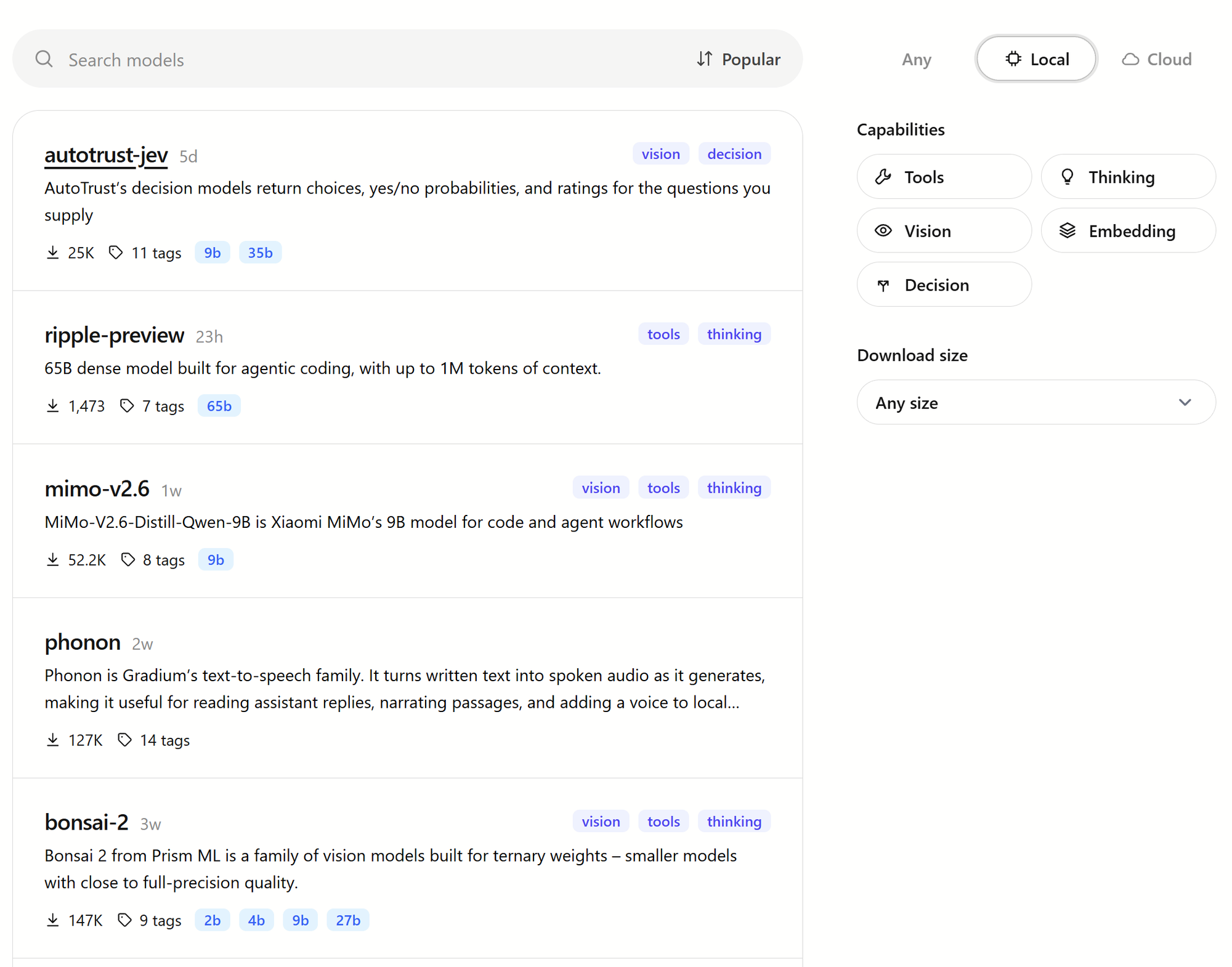
Tags like vision, tools, thinking tell you what the model is capable of. The cloud tag means that the model is accessed via an API. These models require an API key, are not free to use, and do not run locally. Avoid cloud models if you are looking for something to run on your own machine.
- Vision: Vision models can see and analyze images that you upload or link in your prompt.
- Thinking: Thinking (or reasoning) models display their thought process and conclusions as text before giving the final answer.
- Tools: These models are capable of making tool calls, such as executing terminal commands, interacting with applications, or web scraping.
- Decision: These are specialized models (like JEV) that calculate probabilities instead of generating answers. This is most likely not what you are looking for if you want a standard model for chatting or agentic tasks.
- Embedding: These models are used for specific background tasks, such as searching or comparing documents. Unlike generative models, they do not output readable text or actions, so they cannot be used directly for chatting or agentic workflows.
- Parameters (e.g. 4b, 9b, 27b): The "b" stands for billion and tells you how many parameters the model has. Bigger numbers usually mean smarter answers, but they also require more RAM/VRAM.
Select the right version
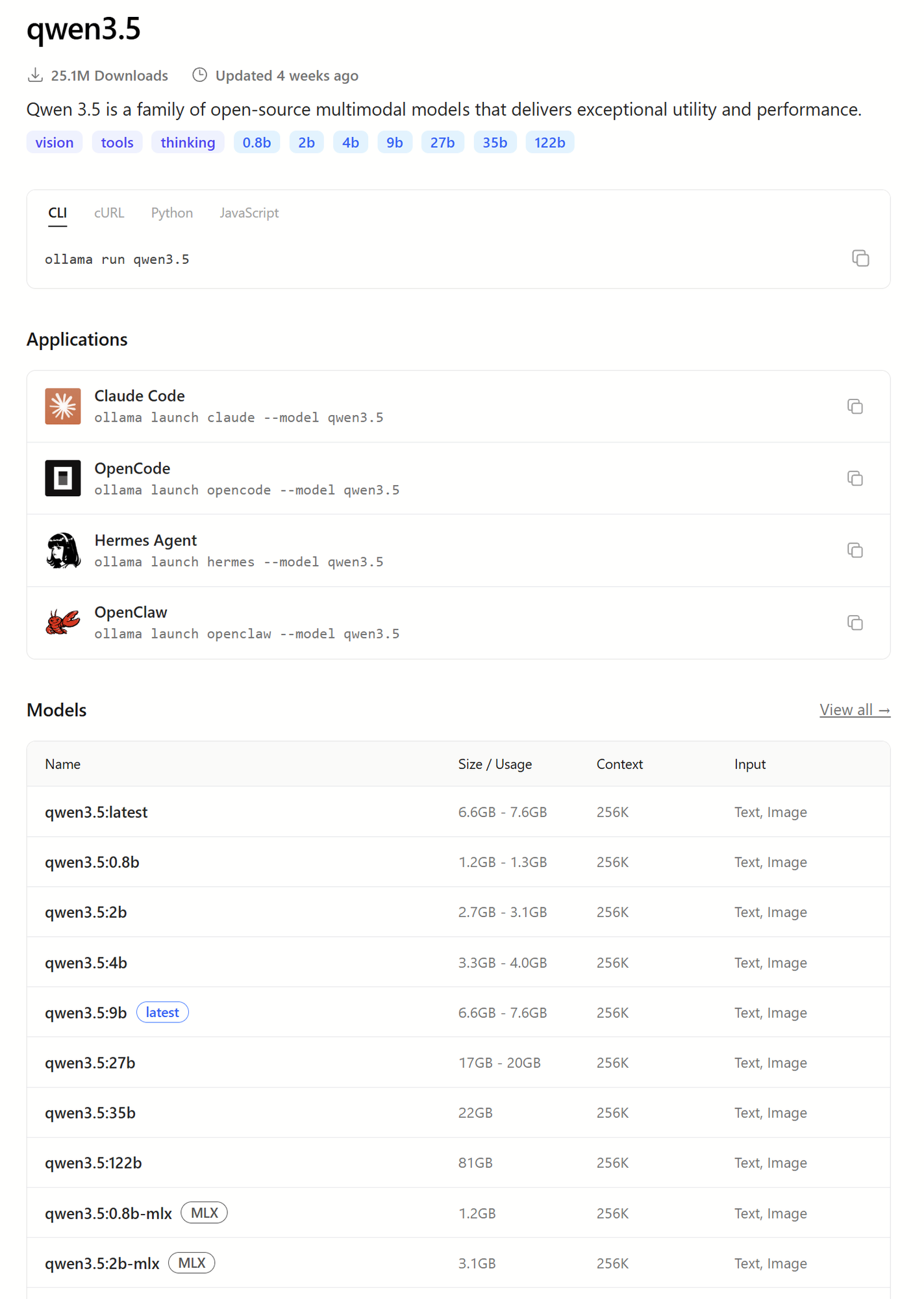
After clicking on a model you see a list of available versions. They differ in size and the amount of parameters.
Search for a model matching your VRAM. The big strength of Ollama is that even models that exceed your VRAM limit are surprisingly fast. Don't exaggerate this ability if you are looking for fast text generation.
The version with the latest tag is good for mid-range PCs.
Models tagged with MLX are exclusively for Apple Macs and won't work on other systems.
How to download the model
Click the version you decided for and you will see the command to run it.
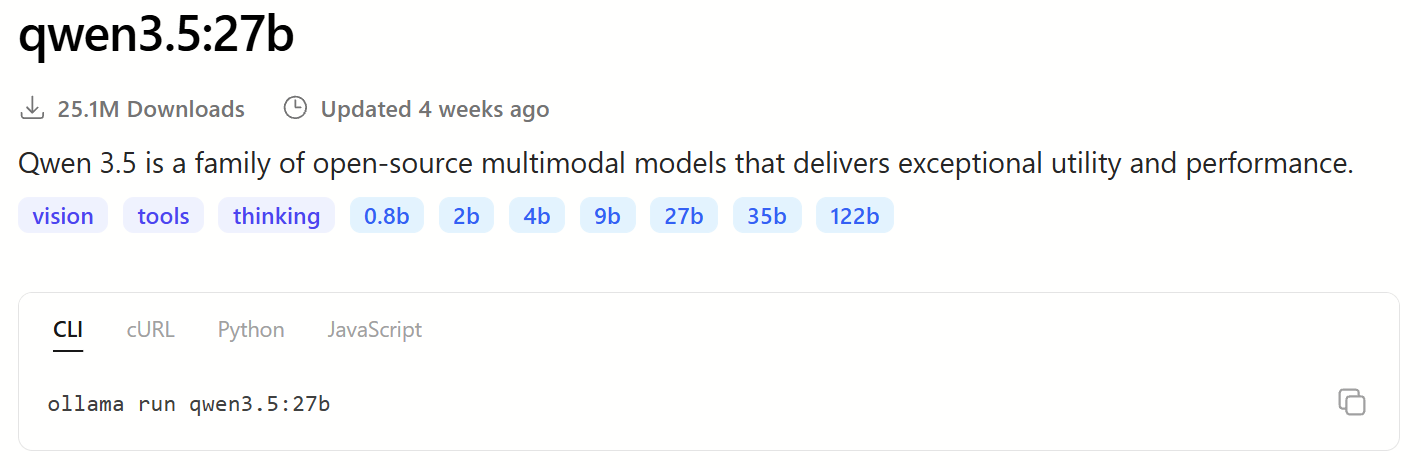
Instead of run the command to download the model is pull.
Let's say you have a GPU with 24GB VRAM and chose the qwen3.5:27b model.
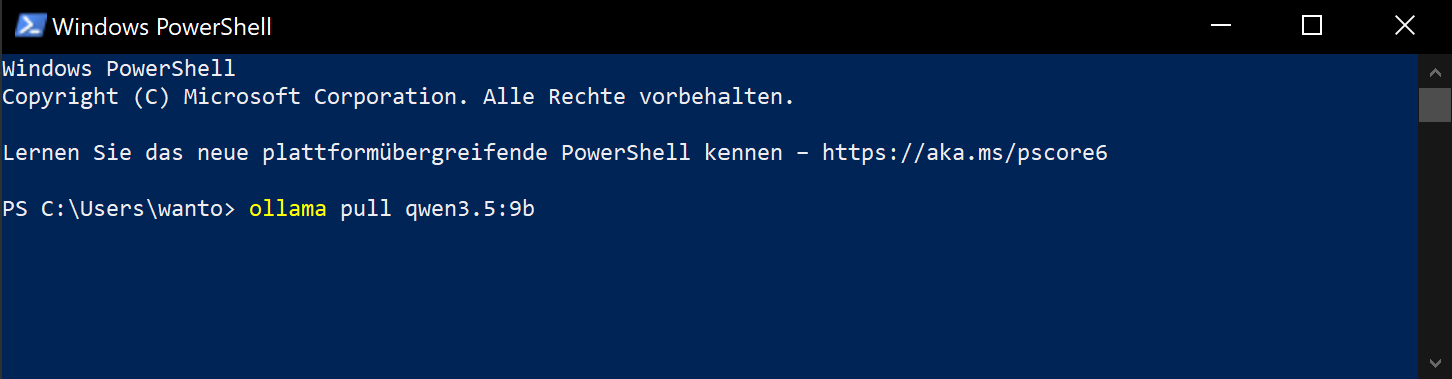
Open Windows Powershell and execute this command:
ollama pull qwen3.5:27b
If you have a smaller GPU and want to go for qwen3.5:9b execute:
ollama pull qwen3.5:9b
This command works no matter in which folder you are in Windows Powershell. The models you download are stored in:
C:\Users\user name\.ollama\models\blobs
After the download is finished you can select that model in every app using the Ollama backend after refreshing the model dropdown menu or restarting the app.
Context
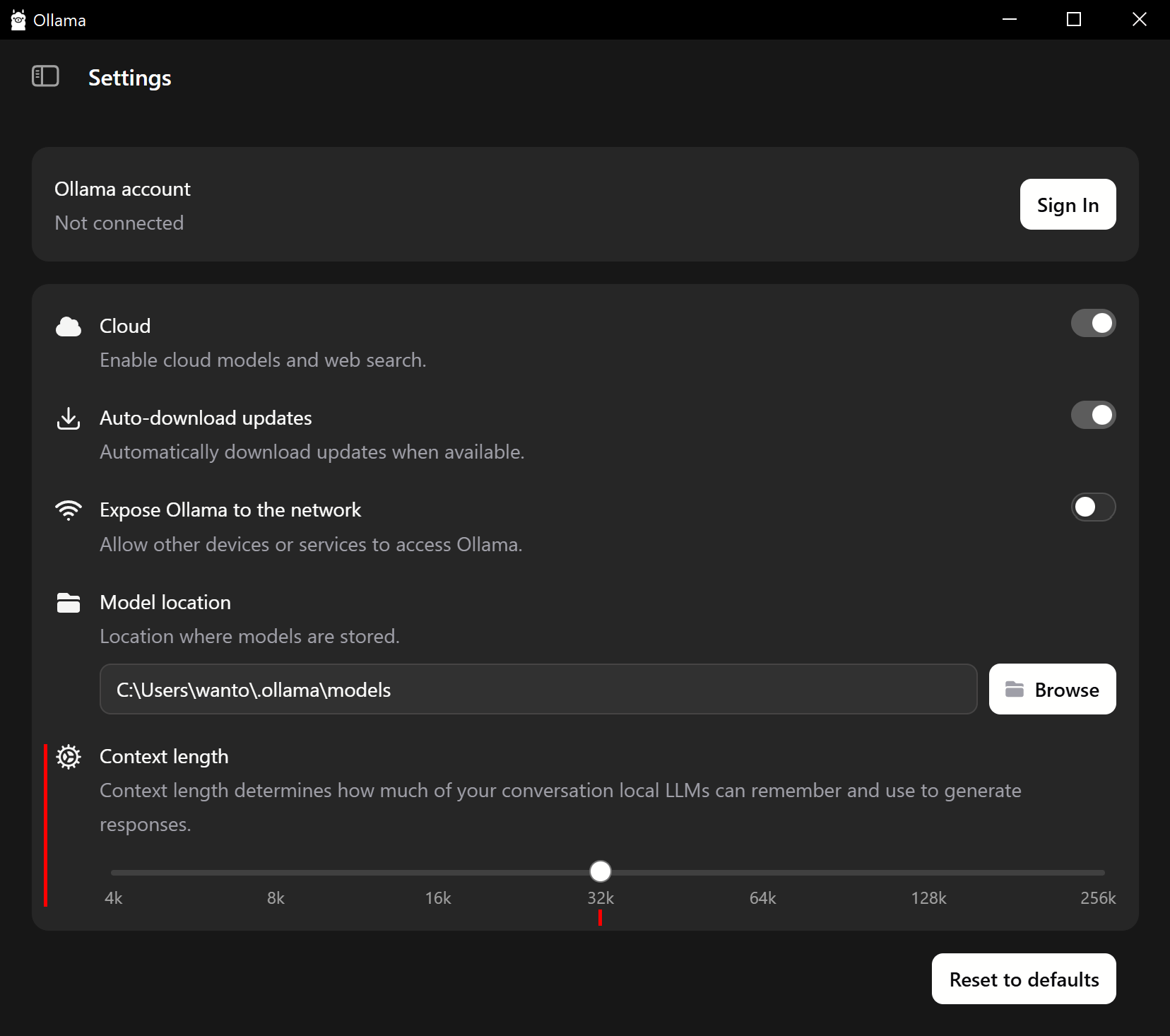
CTX, context or context window are an often underrated setting. This setting defines how much tokens your model is able to process. Everything your model reads, each thought it prints and each answer it generates is measured in tokens. For simplicity let's say 1 word is 1 token approximately. If the context exceeds the context window, Ollama will throw an error.
If you ask for complex tasks, it is recommended to increase the context window. For normal chatting or a simple Q&A the default value of 4096 is most likely sufficient.
To set the context window, click the Ollama icon in your task bar menu on the right side and open the Settings.
The higher the CTX level, the more memory your model uses. CTX adds to your model's memory consumption. You need to find the sweet spot. Fortunately, Ollama remains fast even when part of the process is handled by your system RAM. Keep that in mind when trying to find the right model for your hardware.


Install Ollama
You can download Ollama directly from their home page: https://ollama.com/search
Pick the right version for your system. After the installation you'll find Ollama in your task bar menu on the right side. It's running in the background and doesn't use any resources as long as no model is loaded.
Find a model
Ollama lists all available models on their homepage under Models. You can access it with this link directly: https://ollama.com/search
Search for a specific model with the search field at the top or select your criteria on the right side.
Tags like vision, tools, thinking tell you what the model is capable of. The cloud tag means that the model is accessed via an API. These models require an API key, are not free to use, and do not run locally. Avoid cloud models if you are looking for something to run on your own machine.
Select the right version
After clicking on a model you see a list of available versions. They differ in size and the amount of parameters.
Search for a model matching your VRAM. The big strength of Ollama is that even models that exceed your VRAM limit are surprisingly fast. Don't exaggerate this ability if you are looking for fast text generation.
The version with the latest tag is good for mid-range PCs.
Models tagged with MLX are exclusively for Apple Macs and won't work on other systems.
How to download the model
Click the version you decided for and you will see the command to run it.
Instead of
runthe command to download the model ispull.Let's say you have a GPU with 24GB VRAM and chose the qwen3.5:27b model.
Open Windows Powershell and execute this command:
ollama pull qwen3.5:27bIf you have a smaller GPU and want to go for qwen3.5:9b execute:
ollama pull qwen3.5:9bThis command works no matter in which folder you are in Windows Powershell. The models you download are stored in:
C:\Users\user name\.ollama\models\blobsAfter the download is finished you can select that model in every app using the Ollama backend after refreshing the model dropdown menu or restarting the app.
Context
CTX, context or context window are an often underrated setting. This setting defines how much tokens your model is able to process. Everything your model reads, each thought it prints and each answer it generates is measured in tokens. For simplicity let's say 1 word is 1 token approximately. If the context exceeds the context window, Ollama will throw an error.
If you ask for complex tasks, it is recommended to increase the context window. For normal chatting or a simple Q&A the default value of 4096 is most likely sufficient.
To set the context window, click the Ollama icon in your task bar menu on the right side and open the Settings.
The higher the CTX level, the more memory your model uses. CTX adds to your model's memory consumption. You need to find the sweet spot. Fortunately, Ollama remains fast even when part of the process is handled by your system RAM. Keep that in mind when trying to find the right model for your hardware.