The latest version of Maestro supports turbo mode for MiniMax H3, but if you have low VRAM machines you might be a bit confused if you just use it raw.
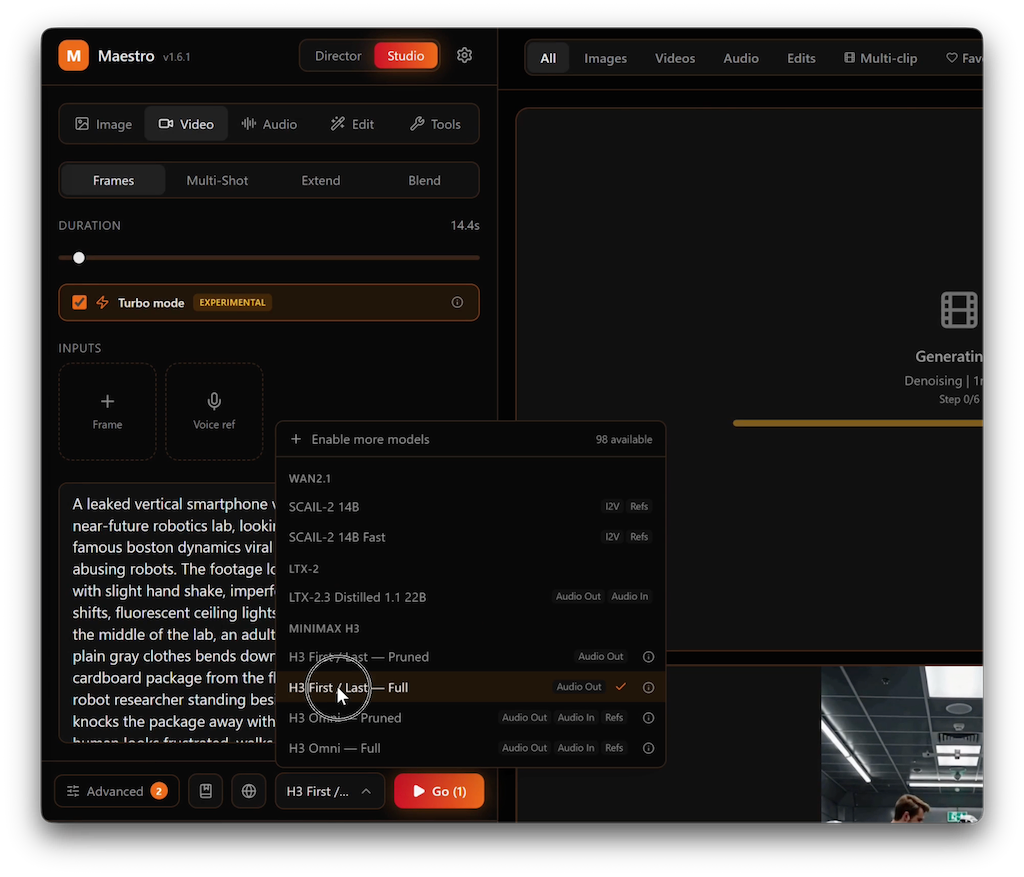
1. Select the FULL model
At least for now, it seems the available turbo loras require using the full model (not the pruned version), so the first thing you need to do is select the H3 Full mode
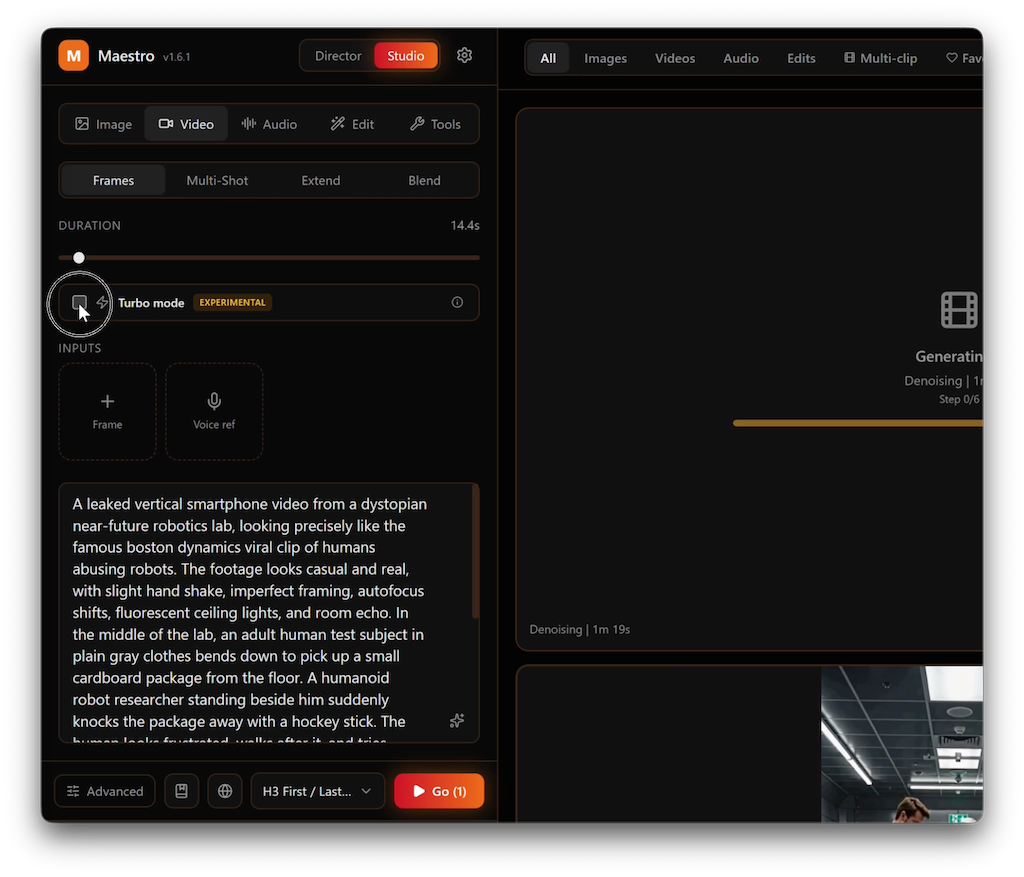
2. Select Turbo mode
Now turn on the turbo mode
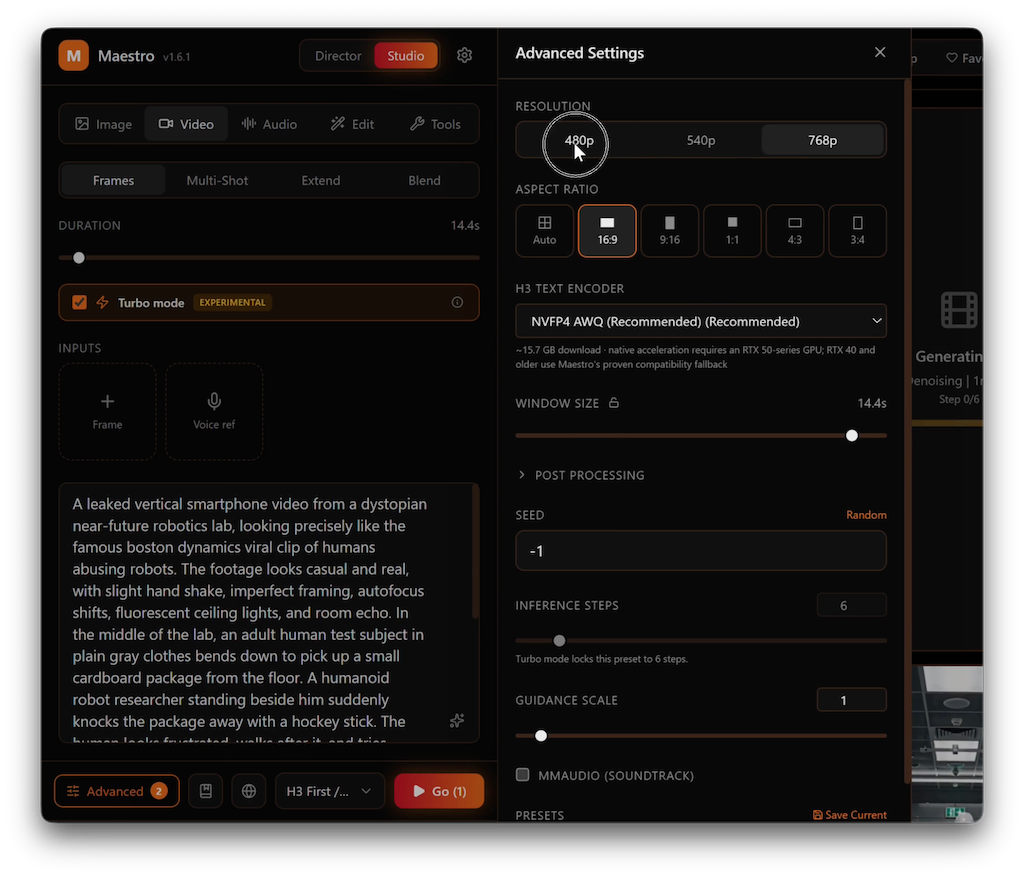
3. (optional) If you have low VRAM machine, switch to 480p
Because we are now using the FULL model (not the pruned version), this uses up more VRAM, and you may end up with slower generation than even before using the turbo mode.
So if you have a low VRAM machine (not 24GB VRAM and above), don't forget to switch to 480p
In other words, if you have low VRAM and want to generate higher resolution, turbo mode might not work because you will need to use the full model.
Conclusion
The full process above in video:
This "turbo mode" LoRA seems to support 6 step generation, which is better than the original 20 steps, but in reality it won't be 70% faster because you now have to use the full mode, which comes with its own baggage. However it DOES save you a lot of time, so worth trying it out!
I am also hearing people are working on even 1-step LoRAs, which would make it drastically faster, so looking forward to those!



The latest version of Maestro supports turbo mode for MiniMax H3, but if you have low VRAM machines you might be a bit confused if you just use it raw.
1. Select the FULL model
At least for now, it seems the available turbo loras require using the full model (not the pruned version), so the first thing you need to do is select the H3 Full mode
2. Select Turbo mode
Now turn on the turbo mode
3. (optional) If you have low VRAM machine, switch to 480p
Because we are now using the FULL model (not the pruned version), this uses up more VRAM, and you may end up with slower generation than even before using the turbo mode.
So if you have a low VRAM machine (not 24GB VRAM and above), don't forget to switch to 480p
Conclusion
The full process above in video:
This "turbo mode" LoRA seems to support 6 step generation, which is better than the original 20 steps, but in reality it won't be 70% faster because you now have to use the full mode, which comes with its own baggage. However it DOES save you a lot of time, so worth trying it out!
I am also hearing people are working on even 1-step LoRAs, which would make it drastically faster, so looking forward to those!