While downloading models with LMStudio is simple, loading them properly so they run quickly and efficiently is another matter. That post covers both topics. But first things first.
If you don't have LMStudio yet, you can download it on this page: https://lmstudio.ai/download
Make sure to download LMStudio and not LMStudio Bionic.
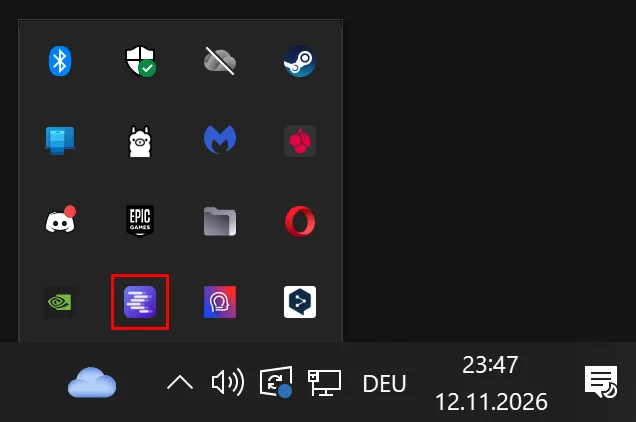
When LMStudio is installed on your computer you'll find it on the taskbar menu on the right side.
Download Models
In LMStudio click the Robot with the magnifier - Model Search.
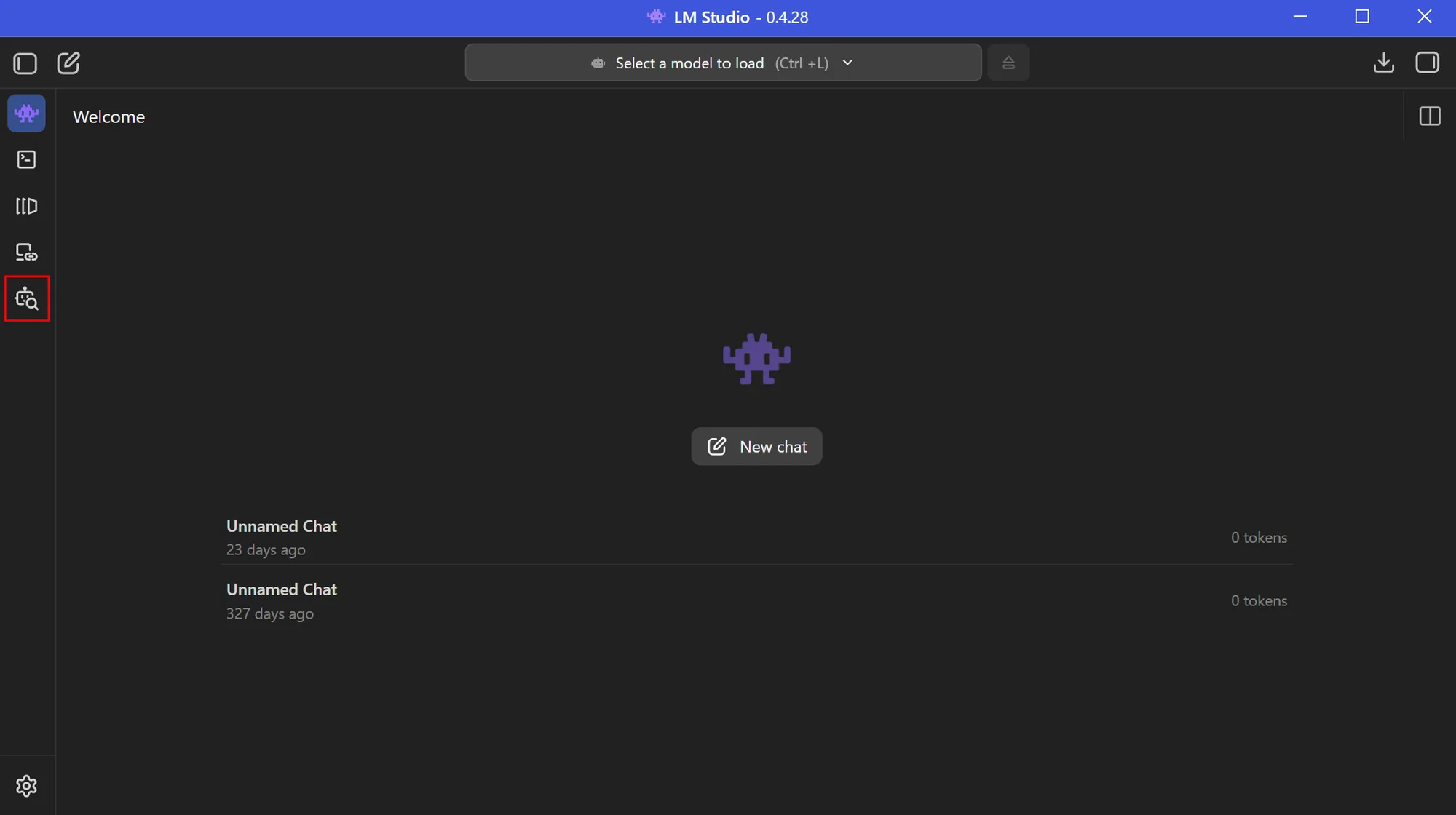
Browse the list of models or search for a specific model with the search bar at the top.
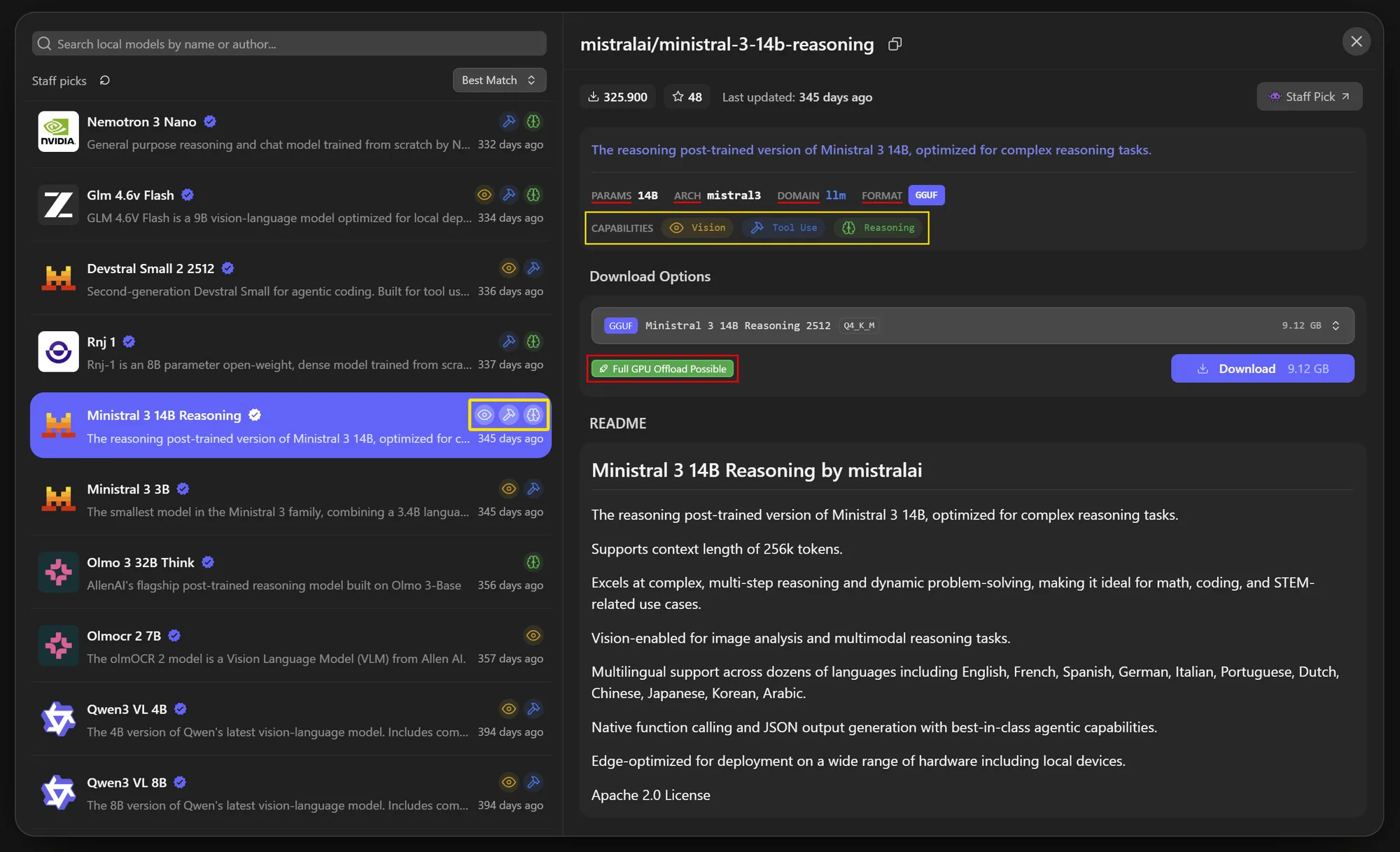
The Capabilities of each model are shown in the model list on the left side and the model details on the right side.
- Eye or Vision: Vision models can see and analyze images that you upload or link in your prompt.
- Brain or Reasoning: Reasoning (or thinking) models display their thought process and conclusions as text before giving the final answer.
- Hammer or Tool Use: These models are capable of making tool calls, such as executing terminal commands, interacting with applications, or web scraping.
Additionally LMStudio displays some other useful information in the model details, such as:
- Parameters (e.g. 4b, 9b, 27b): The "b" stands for billion and tells you how many parameters the model has. Bigger numbers usually mean smarter answers, but they also require more RAM/VRAM.
- Arch: The model family (e.g. mistral, gemma4, llama3, qwen35 and so on)
- Domain: If the model is an LLM (Large Language Model)
- Format: Possible values are GGUF and MLX. Models tagged with MLX are exclusively for Apple Macs and won't work on other systems.
Since LMStudio knows your VRAM and RAM, it also tells you if a model can run on your system. It's displayed in the Model Options.
Possible values are:
- Full GPU Offload Possible: The model can fully run on your GPU
- Partial GPU Offload Possible: Part of the model needs to be offloaded to your RAM (slower)
- Likely too large: Your whole memory (VRAM and RAM) is not enough to load this model
If you search for a specific model, it probably won't come with this additional information which doesn't mean it's the wrong model. For more information about the capabilities, parameters and more read the Models details or click Model Card to open the models page on Huggingface.
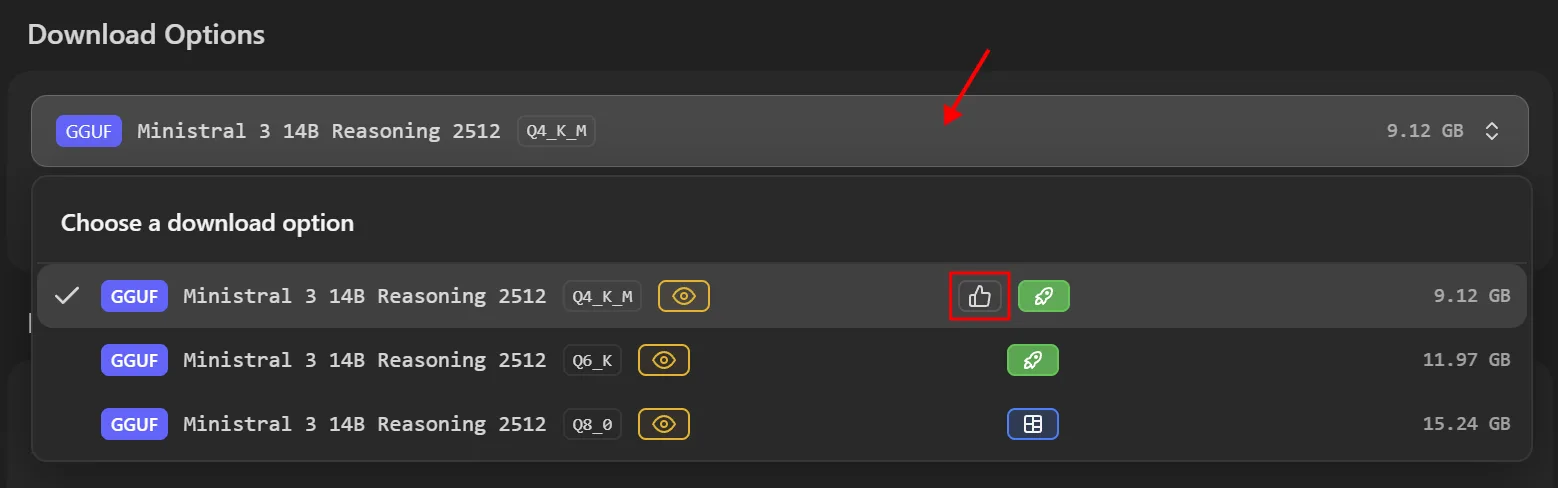
Click the Download Options dropdown menu to see the available versions. They differ in quantization and size. Select the model that matches your VRAM. LMStudio labels the best model for you with a thumbs-up to help you.
Select a version and press Download.
Side Note
Q4 stands for 4-bit quantization. The precision of the model.
L, M and S stand for Large, Medium and Small.
For simplicity, Q8 is more precise than Q2 and Large is more precise than Small.
Loading Models
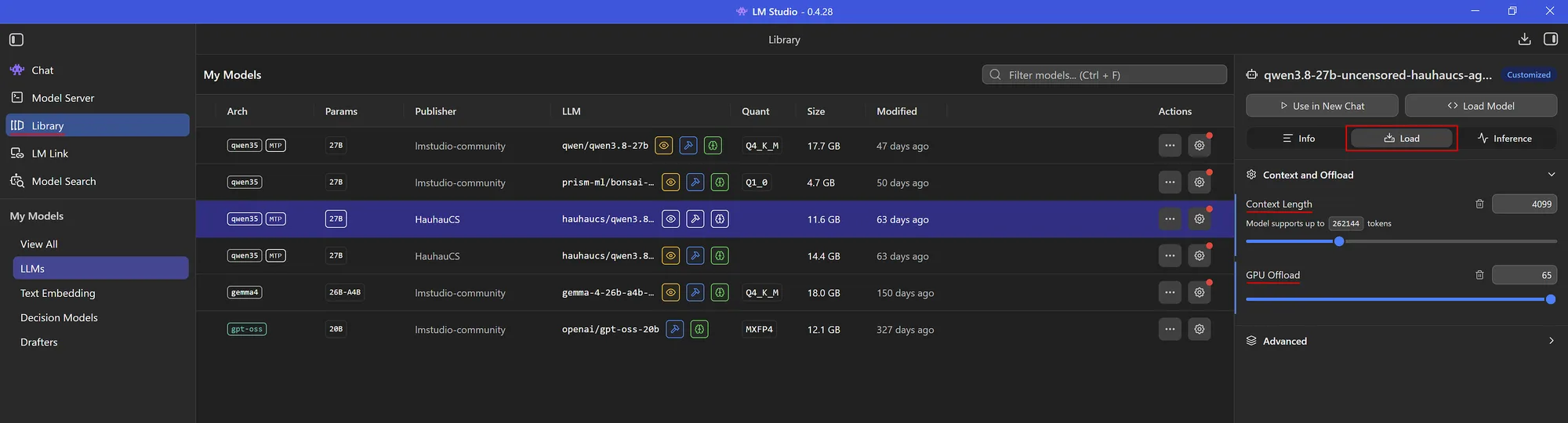
To load a model in LMStudio click on Library and select the model you want to load.
On the top right side select Load.
The most important settings are Context Length and GPU Offload.
- Context Length: Context length defines how much tokens your model is able to process. Everything your model reads, each thought it prints and each answer it generates is measured in tokens. But a higher value also means the model uses more memory. This adds on top of the model size loaded into your memory.
- GPU Offload: How many layers of the model run on your GPU. The higher the value the more of the model runs on your GPU.
These settings and the advanced settings will be saved for the selected model. Each model has its own settings.
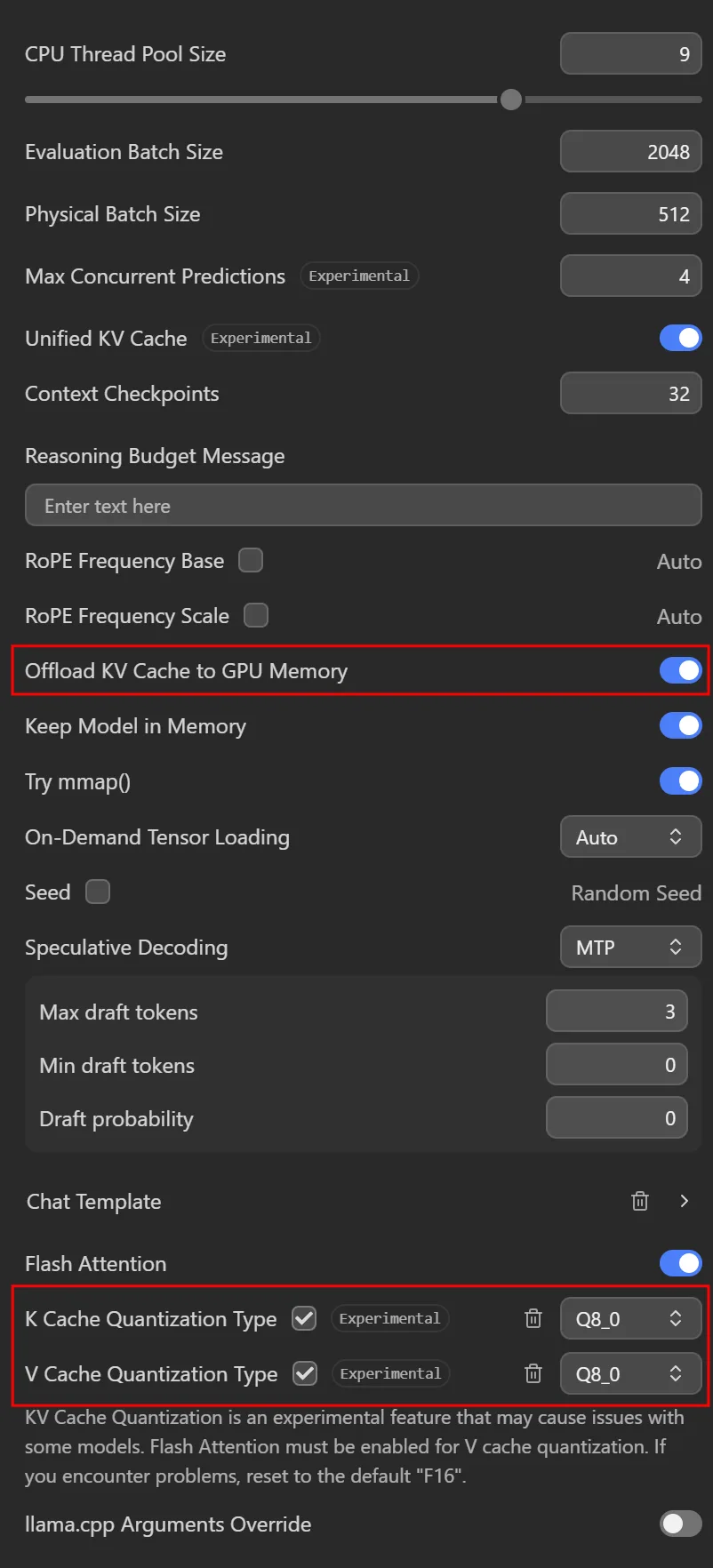
In Advanced Settings, you should pay attention to three more settings for fast inference.
Offload KV Cache to GPU memory: If it's enabled, the additional memory required by the context length will be loaded on top of the model into your VRAM. Deactivate it if you are low on VRAM.
K Cache and V Cache Quantization Type: This is the precision of the answer, not the model itself. If you are short on VRAM, set it to a lower value. FP32 means full precision. Q5 means 5-bit quantization, which is less precise. Strike a balance between quality and VRAM consumption.
After everyting is set up, you can load the model with the Load Model button on the top right.
Also, if you load an LMStudio model with another application, it will use these settings unless they are overwritten explicitly.
Fast inference
LMStudio models may slow down if loaded incorrectly. For optimal speed, your entire model should run on VRAM.
However, by offloading part of the model and the KV cache to RAM, you can still achieve a fast text generation time.
The speed becomes unacceptable as soon as shared GPU memory is used.
I made a comparison
- Model fully loaded into VRAM : 73 tokens per second (blazing fast)
- Part of the model and KV Cache offloaded to RAM: 13 tokens per second (still faster than you can read)
- Shared GPU memory needed, no offload: 1 token per second (avoid under any cost)
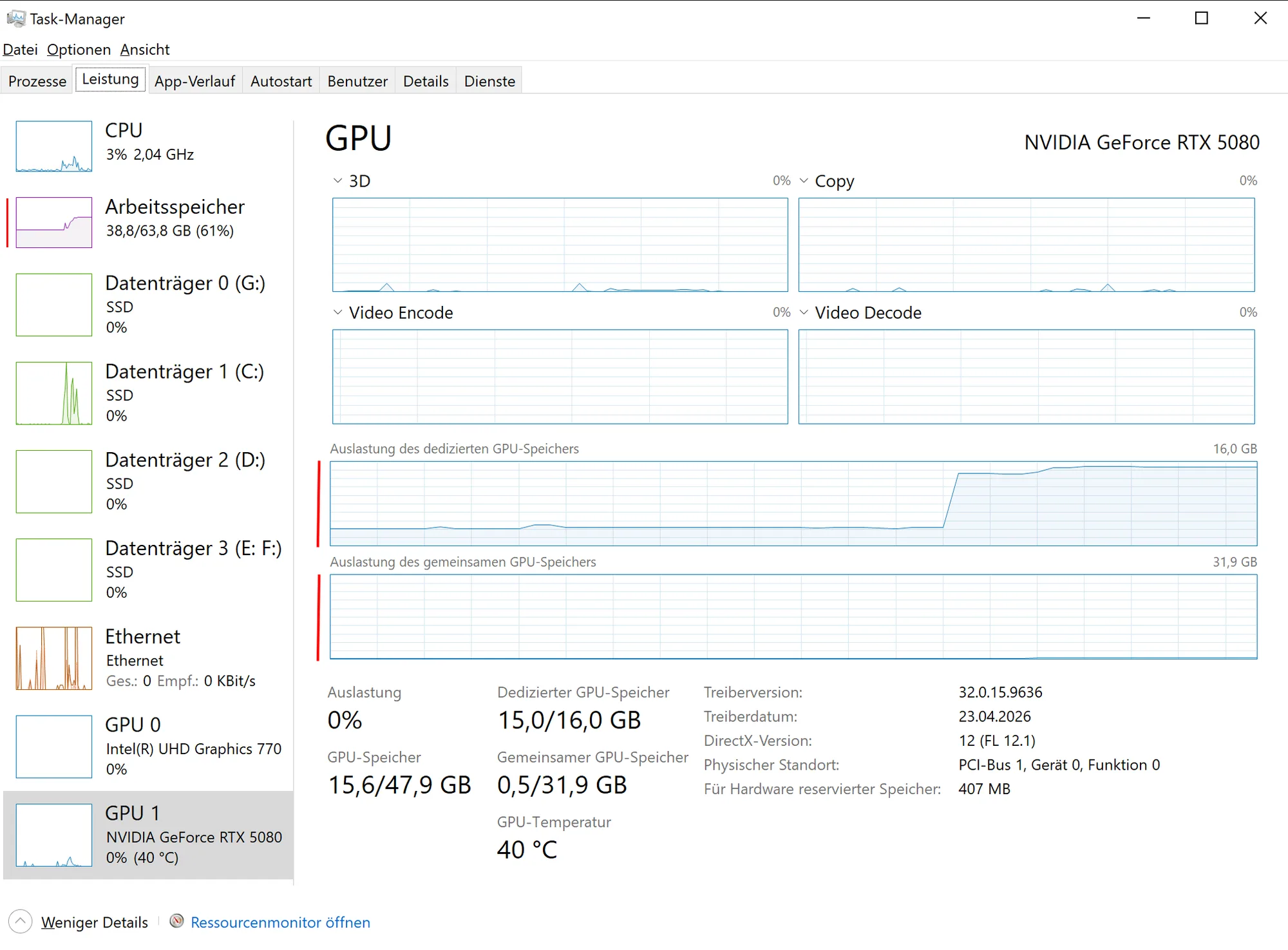
To find the sweet spot, open your Task-Manager (CTRL + Shift + ESC), click the Performance tab and in there your GPU.
Load a model and observe the shared GPU memory graph. If the graph rises, modify the settings accordingly or use a smaller model.
The screenshot below shows a perfectly loaded model. KV Cache offloaded to RAM, the model runs entirely on GPU, no shared GPU memory is used. (= 13 tokens per second). Maximum quality with a good speed for my amount of VRAM.


While downloading models with LMStudio is simple, loading them properly so they run quickly and efficiently is another matter. That post covers both topics. But first things first.
If you don't have LMStudio yet, you can download it on this page: https://lmstudio.ai/download
Make sure to download LMStudio and not LMStudio Bionic.
When LMStudio is installed on your computer you'll find it on the taskbar menu on the right side.
Download Models
In LMStudio click the Robot with the magnifier - Model Search.
Browse the list of models or search for a specific model with the search bar at the top.
The Capabilities of each model are shown in the model list on the left side and the model details on the right side.
Additionally LMStudio displays some other useful information in the model details, such as:
Since LMStudio knows your VRAM and RAM, it also tells you if a model can run on your system. It's displayed in the Model Options.
Possible values are:
If you search for a specific model, it probably won't come with this additional information which doesn't mean it's the wrong model. For more information about the capabilities, parameters and more read the Models details or click Model Card to open the models page on Huggingface.
Click the Download Options dropdown menu to see the available versions. They differ in quantization and size. Select the model that matches your VRAM. LMStudio labels the best model for you with a thumbs-up to help you.
Select a version and press Download.
Side Note
Q4 stands for 4-bit quantization. The precision of the model.
L, M and S stand for Large, Medium and Small.
For simplicity, Q8 is more precise than Q2 and Large is more precise than Small.
Loading Models
To load a model in LMStudio click on Library and select the model you want to load.
On the top right side select Load.
The most important settings are Context Length and GPU Offload.
These settings and the advanced settings will be saved for the selected model. Each model has its own settings.
In Advanced Settings, you should pay attention to three more settings for fast inference.
Offload KV Cache to GPU memory: If it's enabled, the additional memory required by the context length will be loaded on top of the model into your VRAM. Deactivate it if you are low on VRAM.
K Cache and V Cache Quantization Type: This is the precision of the answer, not the model itself. If you are short on VRAM, set it to a lower value. FP32 means full precision. Q5 means 5-bit quantization, which is less precise. Strike a balance between quality and VRAM consumption.
After everyting is set up, you can load the model with the Load Model button on the top right.
Also, if you load an LMStudio model with another application, it will use these settings unless they are overwritten explicitly.
Fast inference
LMStudio models may slow down if loaded incorrectly. For optimal speed, your entire model should run on VRAM.
However, by offloading part of the model and the KV cache to RAM, you can still achieve a fast text generation time.
The speed becomes unacceptable as soon as shared GPU memory is used.
I made a comparison
To find the sweet spot, open your Task-Manager (CTRL + Shift + ESC), click the Performance tab and in there your GPU.
Load a model and observe the shared GPU memory graph. If the graph rises, modify the settings accordingly or use a smaller model.
The screenshot below shows a perfectly loaded model. KV Cache offloaded to RAM, the model runs entirely on GPU, no shared GPU memory is used. (= 13 tokens per second). Maximum quality with a good speed for my amount of VRAM.