Oops from this morning’s CCORE release. I shipped it before GPU memory management was working properly. Preview.19 enables the checks in both CCORE wizards. If your settings won’t fit in available VRAM, Foundry checks smaller options and lets you choose one that fits when available. Your inputs carry over.
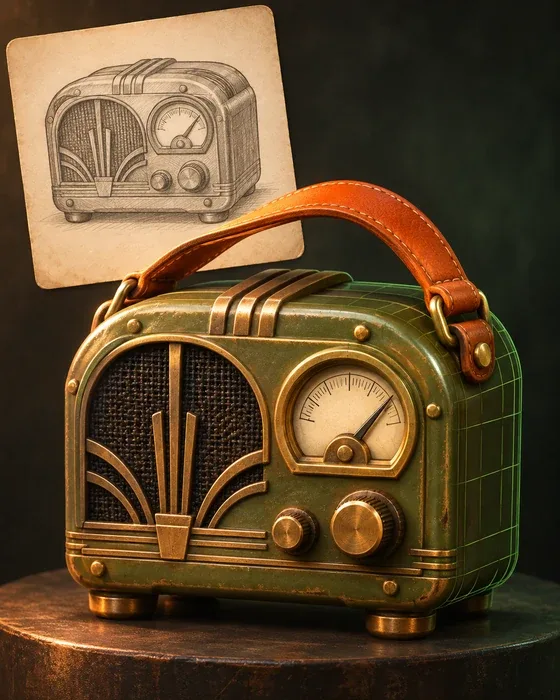
I wanted to show the new Image + Text wizard with a real example. I started with a picture of an olive field radio with a black handle and asked for an orange one. It all runs locally, Pinokio handles setup, and you can follow the wizard without learning the ComfyUI node editor.
1. Open CCORE Image + Text
In Choose a Workflow, find Create a Prop from Image + Text and select Open Image + Text Wizard. Use this when you have a look in mind and want to tell CCORE which details to keep or change.
2. Add a reference and describe the prop
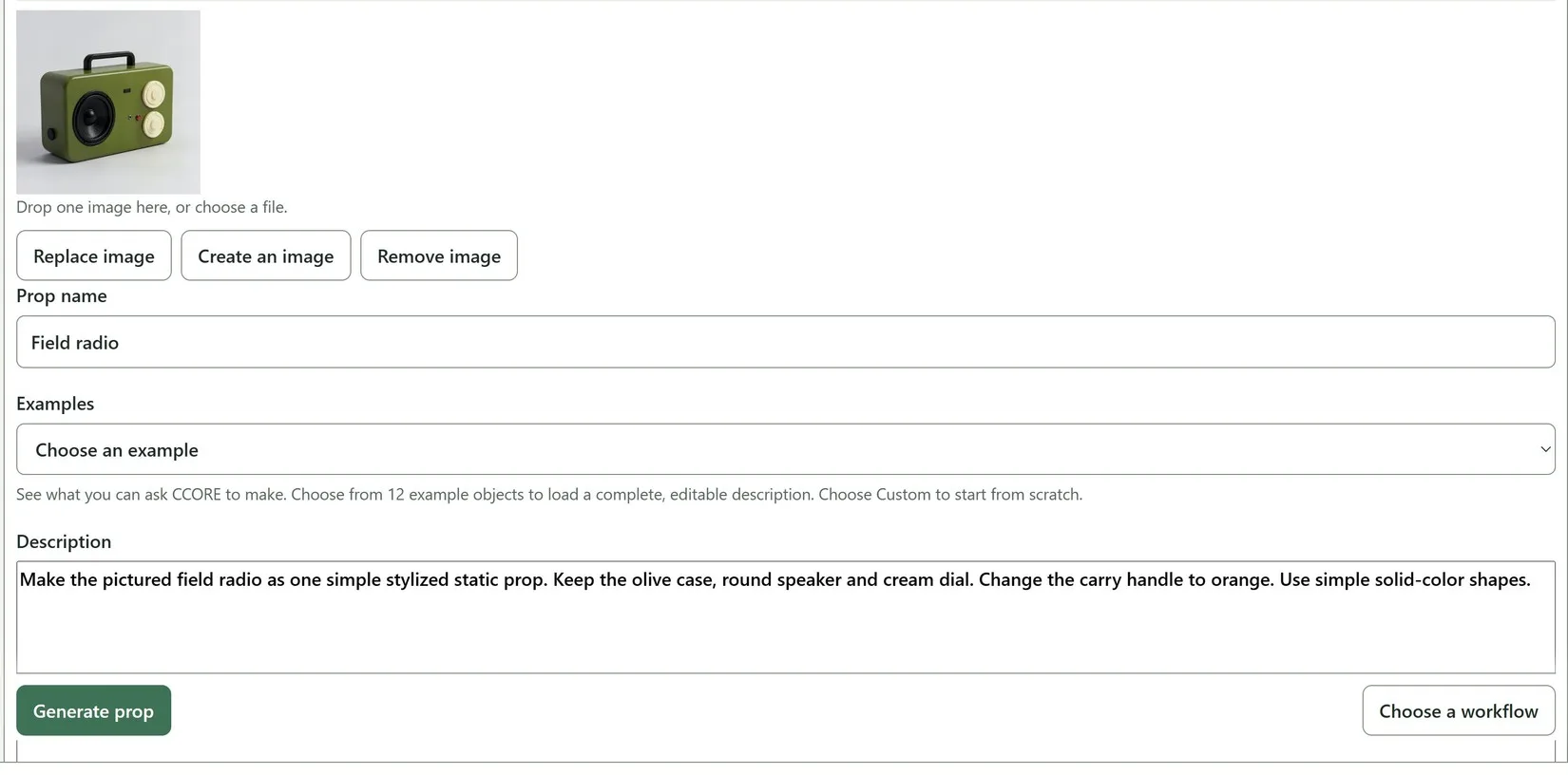
Drop in one clear photo, sketch, or render. If you need a reference, click Create an image, generate one, and select Use image in CCORE to bring it back into the wizard. Then describe the prop and call out the changes that matter. Here’s the prompt I used:
Make the pictured field radio as one simple stylized static prop. Keep the olive case, round speaker and cream dial. Change the carry handle to orange. Use simple solid-color shapes.
3. Choose a model and generate
Start with Standard (Q4_K_M) if you’re unsure. Higher precision (Q8_0) uses more GPU memory. The generation budget under Advanced gives CCORE room to build the asset. A higher budget also reserves more VRAM. I used Standard at 32,768 tokens for this radio. The first run downloads the chosen model and the BF16 vision projector. The elapsed timer shows how long the job has been running.
4. Orbit, review, and download
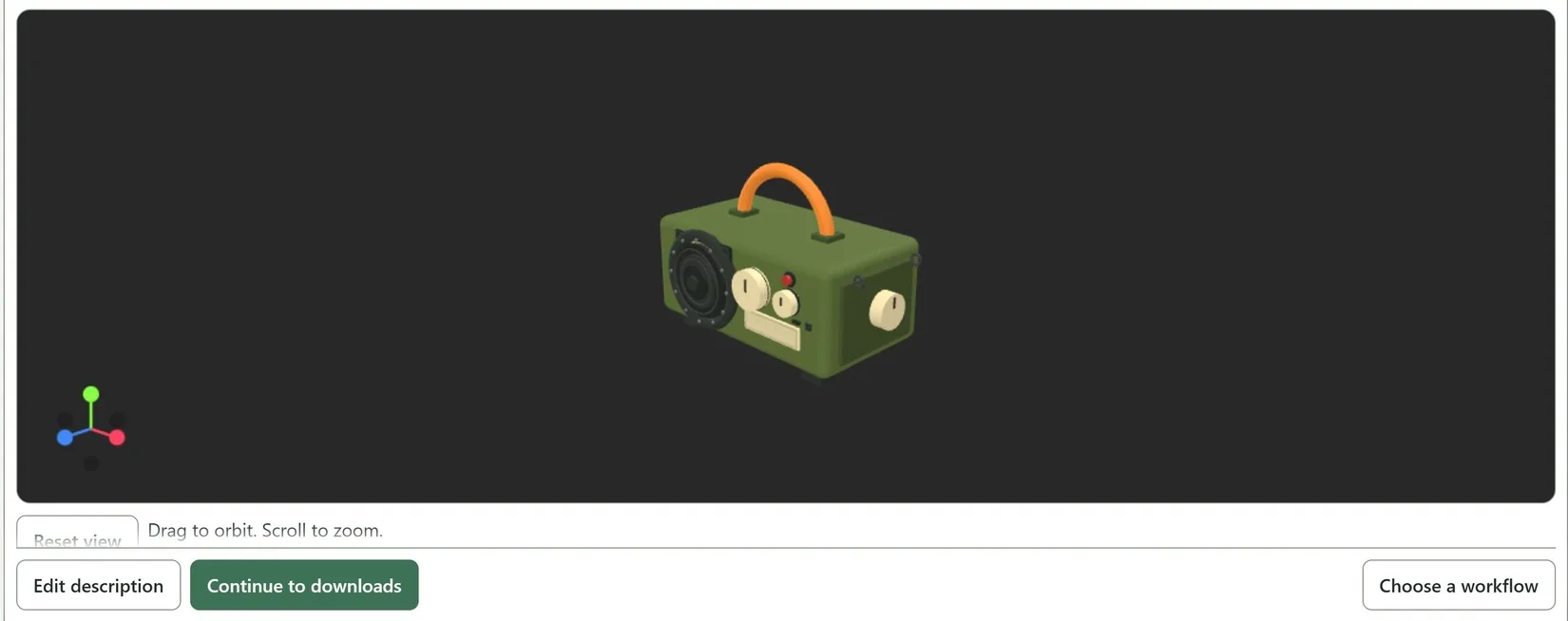
Drag to orbit the result and scroll to zoom. The radio kept the olive case and cream dials, and the handle came out orange. Select Continue to downloads for the GLB, or grab the ZIP for the asset, README, and upstream credits. You can return to the result from History.
If you’re starting with just an idea, open Create a Prop from Text instead. It has 12 editable examples and an optional local description enhancer. Both workflows are powered by CCORE GLB-3D-Coder, built on Qwen3.5. Thanks to the researchers who made these tools available, and to @cocktailpeanut for suggesting the walkthroughs.
Already installed? Choose Update in Pinokio’s Foundry sidebar. If you’re new, start from the app card below. This preview is for Windows with NVIDIA. Preview.19 release notes
Oops from this morning’s CCORE release. I shipped it before GPU memory management was working properly. Preview.19 enables the checks in both CCORE wizards. If your settings won’t fit in available VRAM, Foundry checks smaller options and lets you choose one that fits when available. Your inputs carry over.
I wanted to show the new Image + Text wizard with a real example. I started with a picture of an olive field radio with a black handle and asked for an orange one. It all runs locally, Pinokio handles setup, and you can follow the wizard without learning the ComfyUI node editor.
1. Open CCORE Image + Text
In Choose a Workflow, find Create a Prop from Image + Text and select Open Image + Text Wizard. Use this when you have a look in mind and want to tell CCORE which details to keep or change.
2. Add a reference and describe the prop
Drop in one clear photo, sketch, or render. If you need a reference, click Create an image, generate one, and select Use image in CCORE to bring it back into the wizard. Then describe the prop and call out the changes that matter. Here’s the prompt I used:
3. Choose a model and generate
Start with Standard (Q4_K_M) if you’re unsure. Higher precision (Q8_0) uses more GPU memory. The generation budget under Advanced gives CCORE room to build the asset. A higher budget also reserves more VRAM. I used Standard at 32,768 tokens for this radio. The first run downloads the chosen model and the BF16 vision projector. The elapsed timer shows how long the job has been running.
4. Orbit, review, and download
Drag to orbit the result and scroll to zoom. The radio kept the olive case and cream dials, and the handle came out orange. Select Continue to downloads for the GLB, or grab the ZIP for the asset, README, and upstream credits. You can return to the result from History.
If you’re starting with just an idea, open Create a Prop from Text instead. It has 12 editable examples and an optional local description enhancer. Both workflows are powered by CCORE GLB-3D-Coder, built on Qwen3.5. Thanks to the researchers who made these tools available, and to @cocktailpeanut for suggesting the walkthroughs.
Already installed? Choose Update in Pinokio’s Foundry sidebar. If you’re new, start from the app card below. This preview is for Windows with NVIDIA. Preview.19 release notes